Health Street Logo in stylized text
  • Locations
  • Login
location_pin Locations  login Login 
  • Drug Tests
    • Urine Drug Testing
      • 5 Panel Drug Test
      • 10 Panel Drug Test
      • 12 Panel Drug Test
    • DOT Drug Testing
      • Random Pool
    • Saliva Drug Tests
    • Hair Drug Tests
    • Alcohol Tests
      • Urine Alcohol Tests
      • Breath Alcohol Tests
    • Drugs Tested
    • Drug Test Panels
  • DNA Tests
    • Paternity Testing
      • Legal Paternity Test
      • Home DNA Test Kit
    • Sibling DNA Test
    • Aunt or Uncle DNA Test
    • Grandparent DNA Test
    • Postmortem DNA Test
    • Hair DNA Test
    • Alternative DNA Test
  • Background Check
    • Triple Database Package
    • Court Record Package
    • Platinum Package
    • Ultimate Package
    • Resume Verification
    • DOT Background Check
  • Occupational Health
    • Antibody Testing
    • Biometrics
    • Employment Physical
    • Respiratory Health Exam
    • Tuberculosis (TB) Testing
    • Vaccines
    • Vision and Hearing
  • Resources
    • Drug & DNA Testing by State
    • Background Checks by State
    • Occ Health by State
    • GLASS App
    • Blog
    • FAQs
    • Industries
    • Marijuana Compliance
    • State Laws Compliance
  • Home
  • chevron_right
  • Knowledge Base
  • chevron_right
  • Manage People

Manage People

Every individual in GLASS is represented as a Person, which serves as their core record in the system. A Person can exist without having access to the application.

A User is a Person who has been given credentials to log in and interact with GLASS. While every User is linked to a Person, not every Person is a User.


Add Person

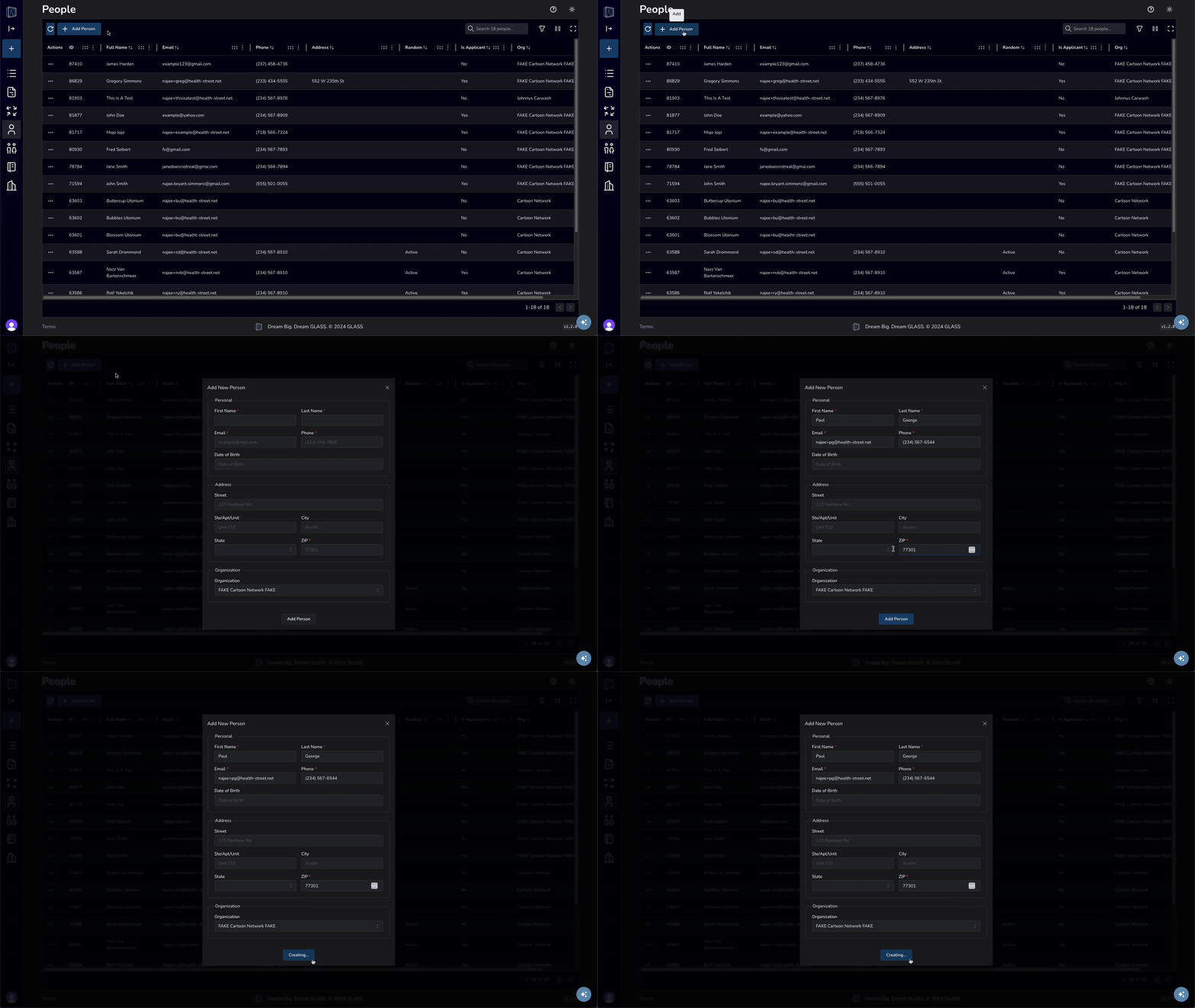
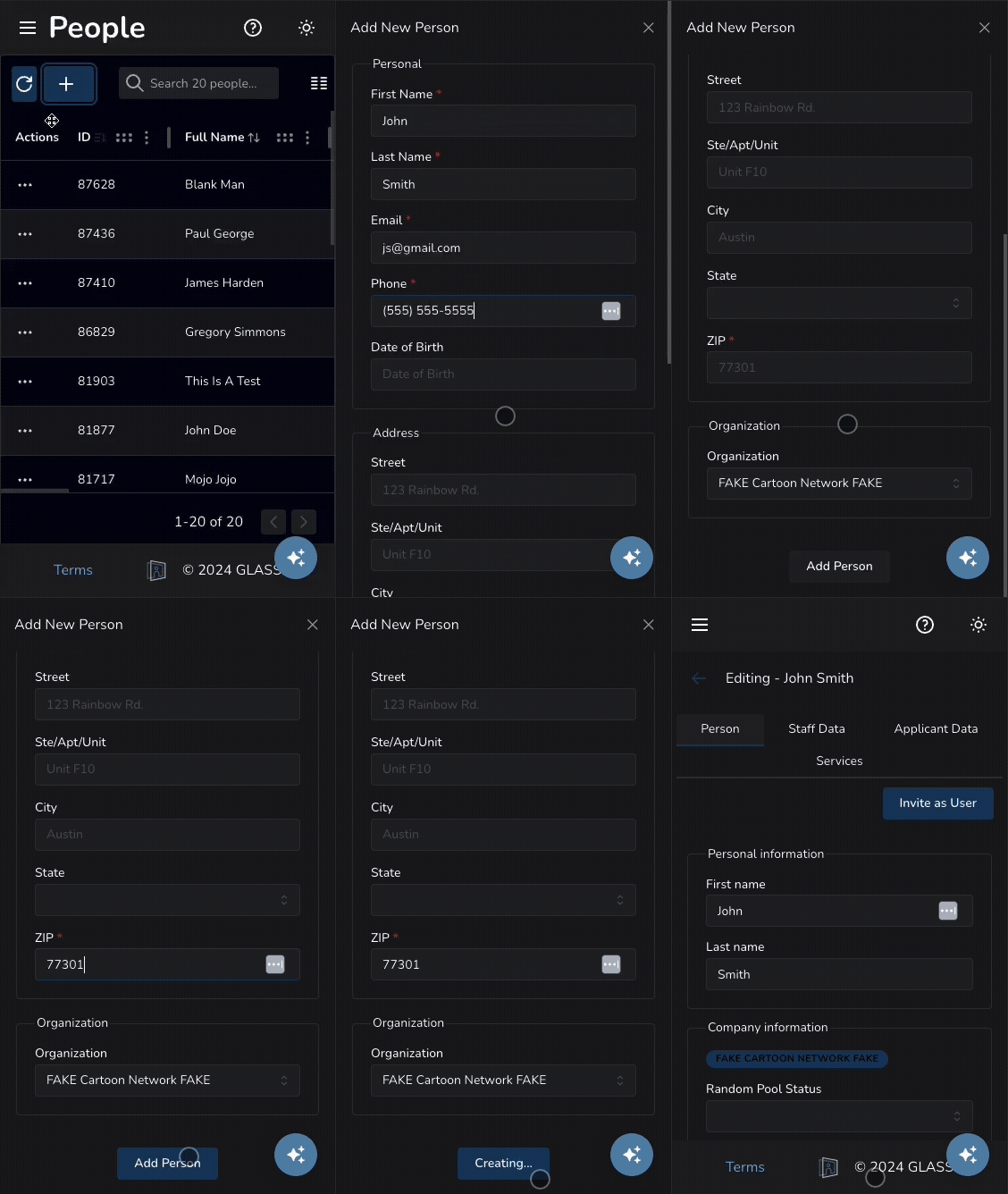
To add a new person to your team, click the Add Person button at the top of the table. From there, you will be taken to the Add Person modal, where you can enter the new persons information and save your changes.

User interface showing a list of people with names, emails, and organizations. A button labeled 'Add Person' is highlighted.

Form for adding a new person with fields for personal information, address, and organization details. 'Add Person' button highlighted.

Update a Person's Information

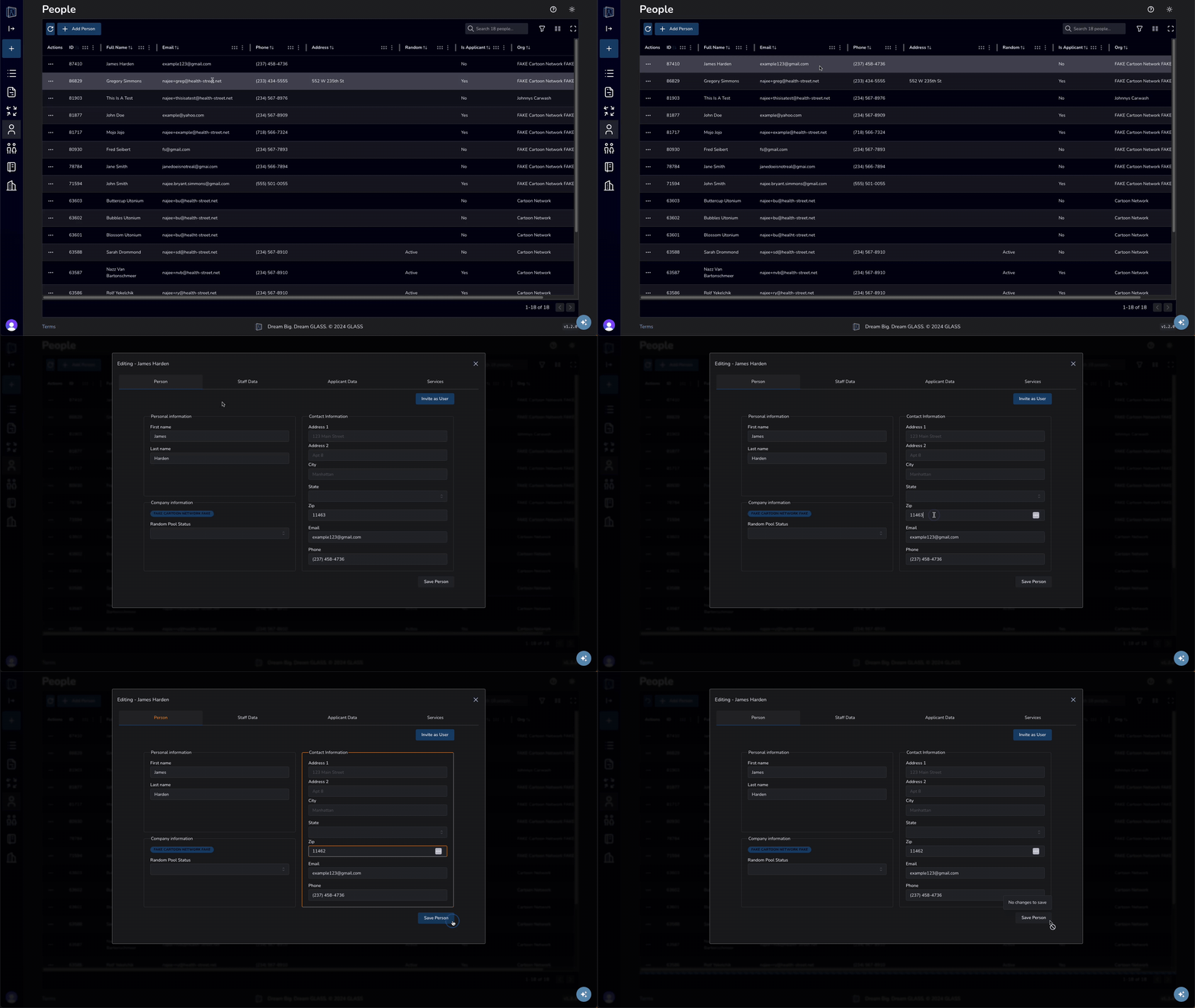
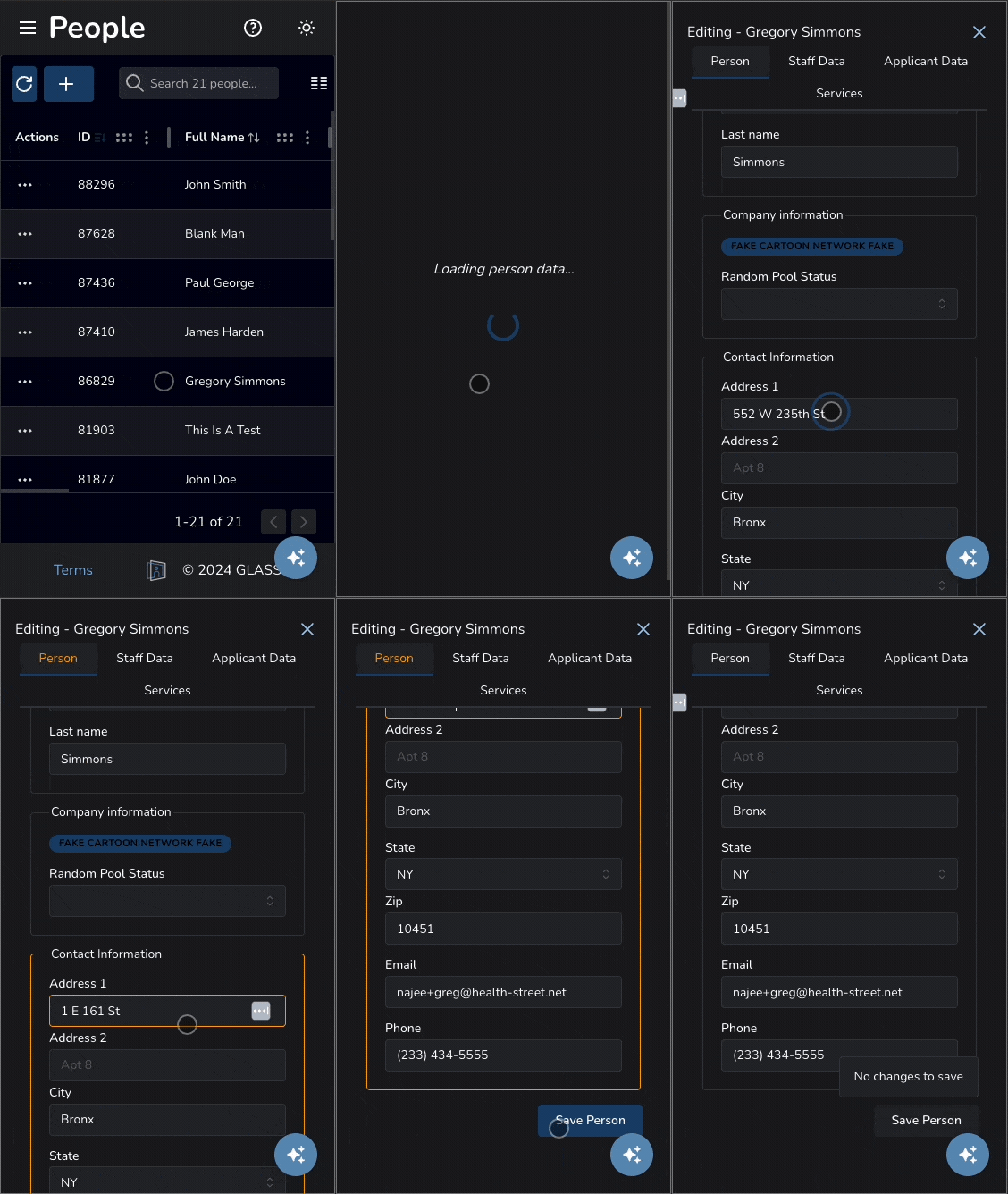
Update employee information by clicking on the row of the employee you wish to update. From there, you will be taken to the Person modal, where you can edit the employee information and save your changes.
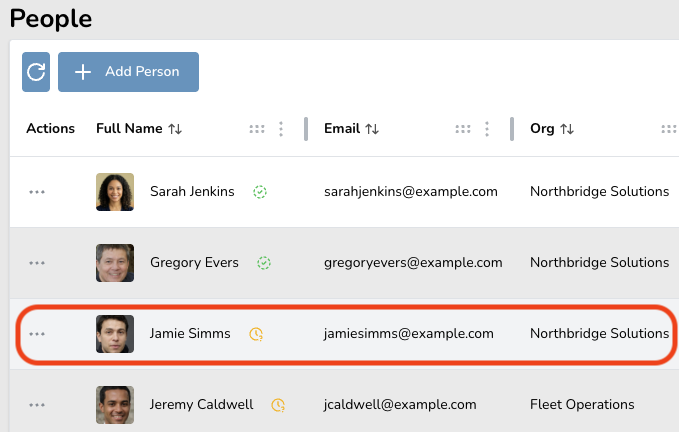
Highlighted entry of Jamie Simms in a contact list, showing email and organization details.

Profile page showing a person's photo, name, email, and profile completion status at 60%.

Form interface displaying fields for personal details including name, email, phone, address, and demographics with a 'Save All' button highlighted.

Order Service for Person

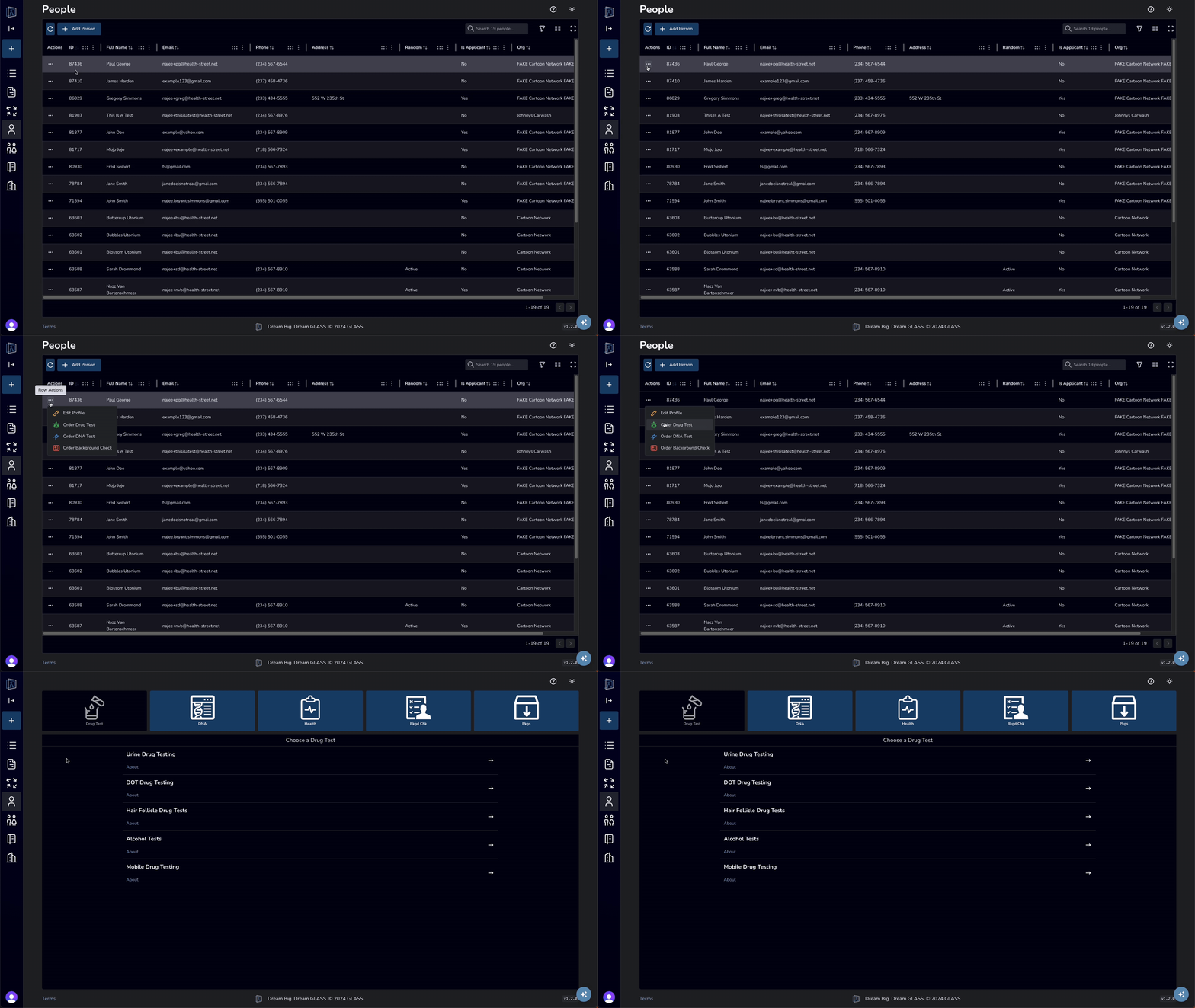
To add services for a person, click the ellipsis (farthest left in the Actions column) on the row of the person you wish to add services for. From there, choose the kind of service you'd like to order.

User interface showing a list of people with options to edit profile, order drug test, background check, photo ID check, and request W4.

Frequently Asked Questions

What is a Person?

Every individual in GLASS is represented as a Person, which serves as their core record in the system. A Person can exist without having access to the application.

A User is a Person who has been given credentials to log in and interact with GLASS. While every User is linked to a Person, not every Person is a User.

How do I update a person's information?

Update employee information by clicking on the row of the employee you wish to update. From there, you will be taken to the Person modal, where you can edit the employee information and save your changes.

Updating a Person on Desktop
Updating a Person on mobile

Click to enlarge

How do I add a new person to my organization?

To add a new person to your organization, click the Add Person button at the top of the table. From there, you will be taken to the Add Person modal, where you can enter the new persons information and save your changes.

How to add a new person to an organization on GLASS desktop
How to add a new person to an organization on GLASS mobile

Click to enlarge

How can I add services for a person?

To add services for a person, click the ellipsis (farthest left in the Actions column) on the row of the person you wish to add services for. From there, choose the kind of service you'd like to order.

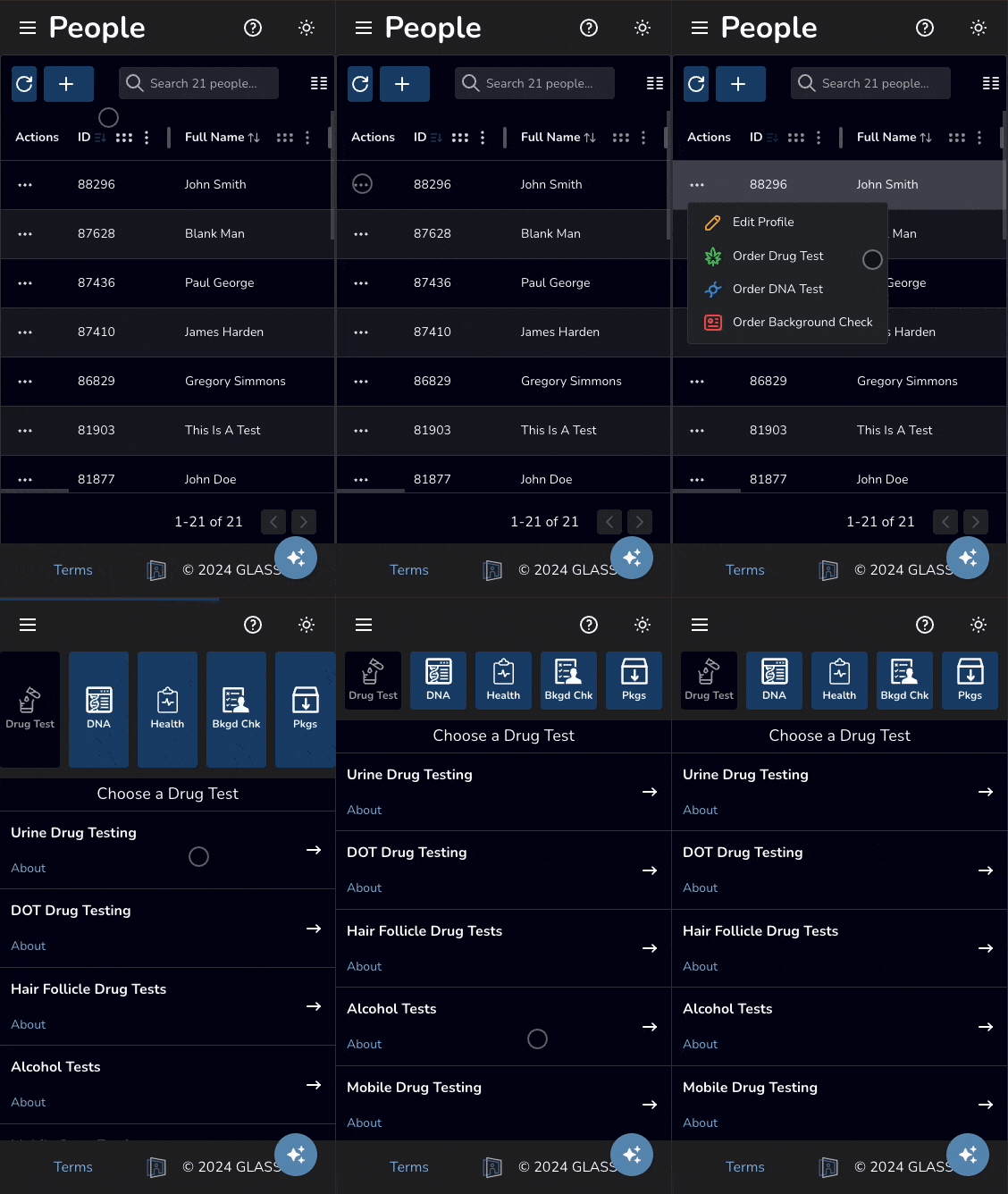
How to add services for a person on GLASS desktop
How to add services for a person on GLASS mobile

Click to enlarge

How do I manage Users (i.e. change permissions?

You can manage User permissions from the users page. Click on the row of the User you wish to update. From there, you will be taken to the Edit User modal, where you can edit the User status and save your changes.

Categories icon

Knowledge Base

  • folder_open Sign Documents
  • folder_open Share Files
  • folder_open Verify Identity
  • folder_open Billing & Payments
  • folder_open Manage Teams
  • folder_open Manage People
    • arrow_right_alt Update Person Info
    • arrow_right_alt Add Person
    • arrow_right_alt Order Service for Person
  • folder_open Manage Random Testing
  • folder_open Order Services
  • folder_open Manage Users
  • Clinic Locations
  • About Us
  • Blog
  • FAQ
  • API
  • Privacy
  • Sitemap
  • Terms & Conditions
  • Contact
© 2026 Health Street
  • About Us
  • API
Privacy Policy | Sitemap | XML Sitemap | Terms & Conditions | Contact Us |
© 2025 Health Street