Share Files
GLASS DROP is a secure document sharing feature within GLASS that allows you to organize, manage, and share files with both internal and external recipients.
Using GLASS DROP, you can create document buckets to keep related files organized in one place and securely share them through controlled access links. You can share entire buckets or individual files with other users on the GLASS platform or with people outside of GLASS without requiring them to log in to your account.
You control how files are shared by setting permissions, limiting recipient actions, and managing when access begins or expires.
Navigate to Buckets
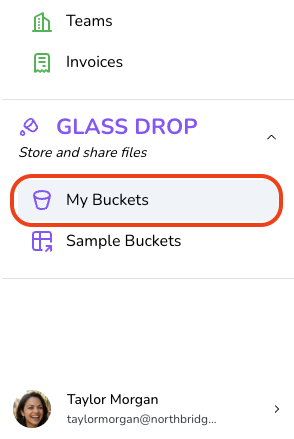
To go to the buckets workspace, click My Buckets in the navigation menu.
Add a New Bucket
First, click the New Bucket at the top right of the GLASS Buckets page.

Provide a name for the Bucket and, if desired, add a description.

Next, you may add a Drop to the Bucket by either dragging and dropping a file from your desktop in the highlighted space, or clicking Add File and choosing a file from your computer.

Then click the Create Bucket button. You can create the bucket with or without adding a drop first.
Add New Drop to a Bucket
First, navigate into an existing Bucket and click Add drop

Drag and drop a file from your desktop into the highlighted space, or click within the highlighted space to choose a file from your computer.

Finally, name the new drop and click the Save at the top-right.

Manage Bucket Ownership
From inside of the bucket, click the ⚙ icon.
On the next screen, you will see 3 tabs containing different configuration options for the bucket. Descriptions for each tab are provided below.

General - Here you may change the Bucket title or description.

Share - Opens the sharing configuration, where access to the Bucket (or individual files) may be added or removed. For more details, see Share Bucket Access and Remove Bucket Access.

Danger Zone - Here you may transfer bucket ownership or Delete the Bucket. These actions are irreversible.

Share Bucket Access
To share a Bucket click the
Next, click over to the Add new access tab, the choose Share full bucket.

To share this Bucket with one or more people, click the Select people field. Then either type and select a person’s name or choose them from the dropdown list. You can select multiple people as long as they will all have the same role.
You may also include an optional message with the sharing notification.

To review the actions available to each role, hover over the ? icon.

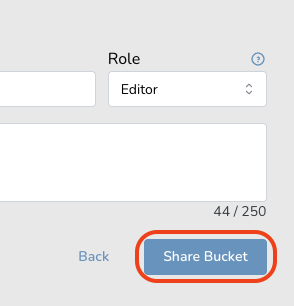
Finally, click Share Bucket. All selected people will receive a notification letting them know they now have access to the bucket.
Remove Bucket Access
To open Bucket access management configuration, click the Share icon at the top right of the page.
To remove access to the Bucket click the trash can icon, on the Person's row.

Drop Actions
Click the Actions button on a drop to access the following options:
Preview File - Opens the current file in the drop in a new browser window so you can quickly view its contents without downloading it to your device.
Download File - Downloads the current file from the drop to your device for offline access.
Replace File - Uploads a new file to the drop, replacing the current file while keeping the same drop location within the bucket.
Remove Drop - Permanently removes the drop from the bucket, including any file currently stored in it.

Share Individual File(s)
To share an individual file within a bucket, click the
Next, click over to the Add new access tab, the choose Share individual files.

Next, Select one or more files from the bucket to share, then click Share selected.

Click the Select people field. Then either type and select a person’s name or choose them from the dropdown list. You may also include an optional message with the sharing notification.Then click Share files to email each designated person the chosen files.

Frequently Asked Questions
What is GLASS DROP? How does it work?
GLASS DROP is our secure file-sharing solution that lets you share sensitive files and information with others on the GLASS platform or with external users via secure access links.
Sharing grants recipients access based on the permissions you set, allowing you to control who can view the files, what actions they can take, and when access ends.
How does GLASS DROP keep shared documents secure?
Does someone need to have a GLASS account in order for me to share a bucket them?
What is a bucket? How is it different from a file?
A bucket is a collection of files grouped together in one secure location, making it easy to organize, manage access, and share related documents.
Can I end or revoke access to a GLASS DROP bucket after it’s been shared?
Can I share individual files without sharing the entire bucket?
