Sign Documents
eSign Documents are digital forms and agreements for which you can securely request completion. Additionally, eSign Documents are connected directly to the profiles of any individuals associated with them in GLASS—including multiple signers—so all completed documents are organized and easily accessible alongside each person’s record.
Navigate to Esign
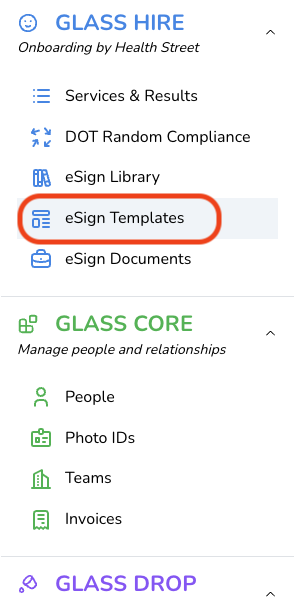
To navigate to the ESign Templates Table, click eSign Templates.
Choose Template
Select an eSign Template from the List. Click the elipses to the left of the form name in order to preview or choose the form.

Add Signer(s)
Select an existing Person from the dropdown menu, or click the Person Icon in order to create and add a new person.

Pre-Populate Fields
Click the pre-populate option for the person whose field information you wish to provide. From here you will have the opportunity to pre-fill any forms on the field pertaining to that person.


Send Request
Toggle the switch to decide whether to enforce a signing order. If you do so, keep in mind that you may drag and switch the order to match your preference.

Resend Sign Request
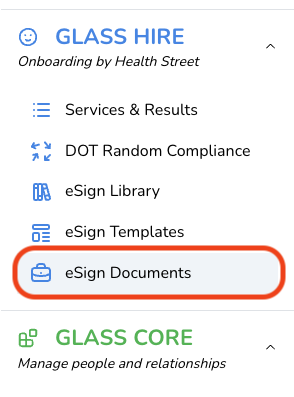
Click 'eSign Documents' on the navigation menu to go to the eSign Documents table.
Find the document for which you want to re-send signature requests and click its table row.

From here, you may either re-send a sign request to all or one recipients. Please note that if there is a signing order, you will only have the option to send a request to the next eligible signer.

Done For You
Click the New Template button at the top left of your screen of the eSign Templates table.

Choose the “Done for you” option on the left.

You’ll be taken to a page where you can upload a PDF of the form you want converted into an eSign document. Once submitted, our team will handle the setup and notify you when it’s ready.
After it’s complete, your custom template will appear in the eSign Templates table. From there, you can select it and request signatures the same way you would with templates from our library.

Text Blocks
A Text Block is a content element used to add and format written content within a document. When used within templates, Text Blocks will appear the same across every document created from that template, helping ensure consistency in messaging, structure, and formatting.
To insert a Variable into a Text Block, place your cursor where you want it and type an opening square bracket [. This will trigger a menu where you can first select a role, then choose the variable you want to insert.

Click, hold, and drag your cursor from Text onto the document in the editor. It will turn into a Text Block, which you can place anywhere on the document.

Variables
A variable is a named placeholder that stores a value and is automatically replaced when a document is generated. It can be assigned based on a role (e.g., employee.name, manager.name), allowing the document to insert the correct information dynamically depending on the role being referenced. Variables are read-only within the document and cannot be edited manually.
To add a variable to a text block, place your cursor at the desired position and type "[". A menu will appear where you can select a role, then choose a variable to insert.

Once selected, the variable is inserted into the text block, and its corresponding data is automatically populated in each document.

Fillable Fields
Fillable Fields are interactive elements added to a document that allow recipients to enter or modify information, such as text, dates, signatures, or checkboxes. Each field can be assigned to a specific role, determining who is responsible for completing it.
To add a fillable field to your template, select a field from the panel, then click and drag it onto the document in the editor. After placing it, you can reposition, resize, and assign it to a role that will be responsible for filling it out.

Assign Role to a Fillable Field
There are two ways to assign a role to a fillable field, which determines who can edit its values. First, in the configuration panel, under the Fillable Fields For label, click to select an existing role or add a new one. The fields you drag onto the document will by default be assigned to the selected role. This can be changed at any time while in the editor, even on the document.
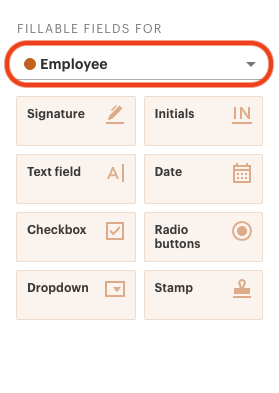
To make this change on an existing field, click the field, then click the role name. A dropdown will appear, allowing you to select a different role.

Merge Fields
Like Variables, Merge Fields also use your existing GLASS data, but they pre-populate fillable fields, which can still be edited by the signer if needed.
To turn a fillable text field into a merge field, first click into the field, then click the slider icon to to configure its properties.

For a list of available merge fields, view the merge field section by of the Help Panel. The Help Panel is accessed by clicking the question mark icon at the top right of the editor.

In the Merge Field input, enter the role and corresponding field (e.g., Employee.FirstName) to automatically populate the field with the appropriate data.

Frequently Asked Questions
What are eSign Documents?
eSign Documents are digital forms and agreements for which you can securely request completion. Additionally, eSign Documents are connected directly to the profiles of any individuals associated with them in GLASS—including multiple signers—so all completed documents are organized and easily accessible alongside each person’s record.
To whom can I send a request to complete and eSign a document?
You can send a eSign request to any individual for whom you have an accurate email address or phone number. Requestees do not need a GLASS user account to view, add attachments to, or eSign a Document.
Can I resend the eSign Document request if the signer didn’t receive or can't find it?
Yes. To resend an eSign Document request, navigate to the Signed Document table and click on the row of the document you want to resend. Once you arrive on the document's page, hit the "Resend Link" button.
What is a signing certificate, and where do I find it?
A signing certificate is a page GLASS automatically adds to every completed eSign document (as its final page). It records each signer's name, email or phone, when they viewed and signed the document, and the IP address they signed from. Keep it with the document as proof of who signed and when.

